
Give one portrait a short message
Start with a portrait you already have. A face that looks toward the camera with the mouth clearly visible makes it easier to choose a good source photo. The setting in the picture is part of the starting image.
Write something that belongs with that portrait, such as a birthday greeting or a brief introduction. Keep the first try short, then play the result to check how the expression, voice, and scene work together.
Use a clear, front-facing photo
Choose one portrait with a sharp, well-lit face and a visible mouth. A photo of one person is easier to prepare than a group shot.
Open the composer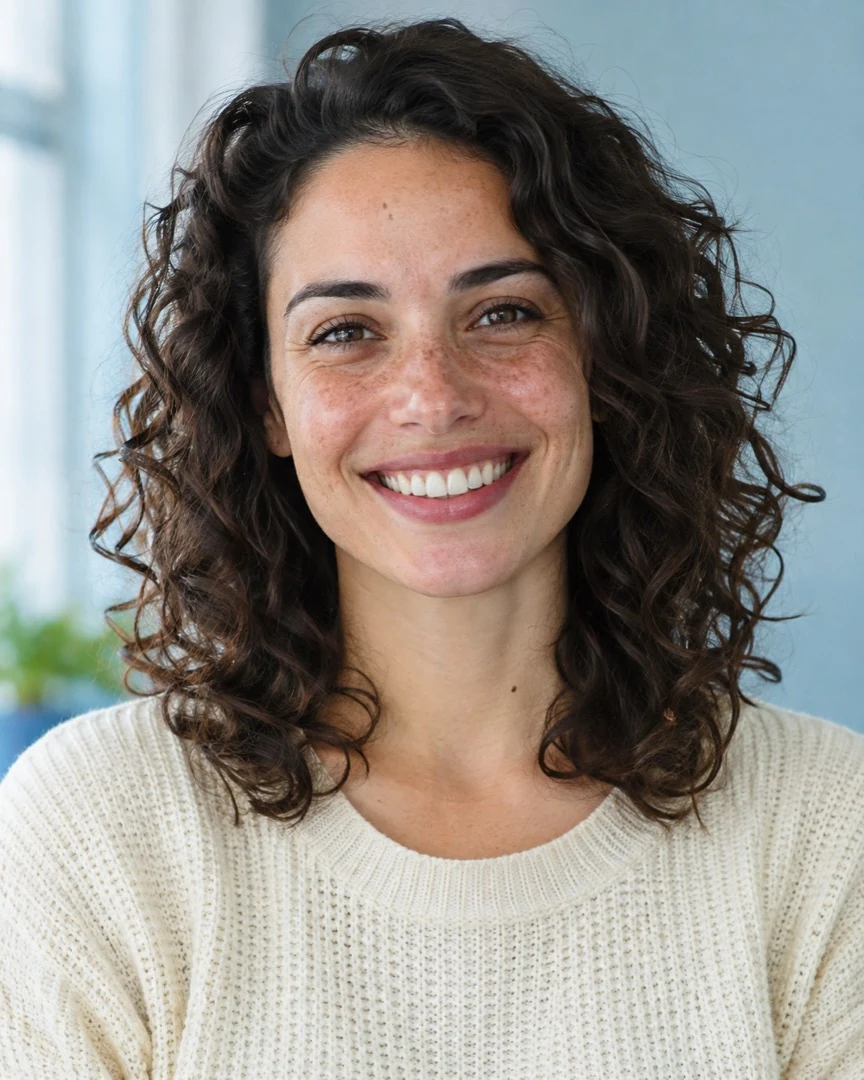
Start with the scene you want to keep
The source photo supplies both the person and the background. If the scene matters to the message, pick the right photo before you upload it.
Open the composer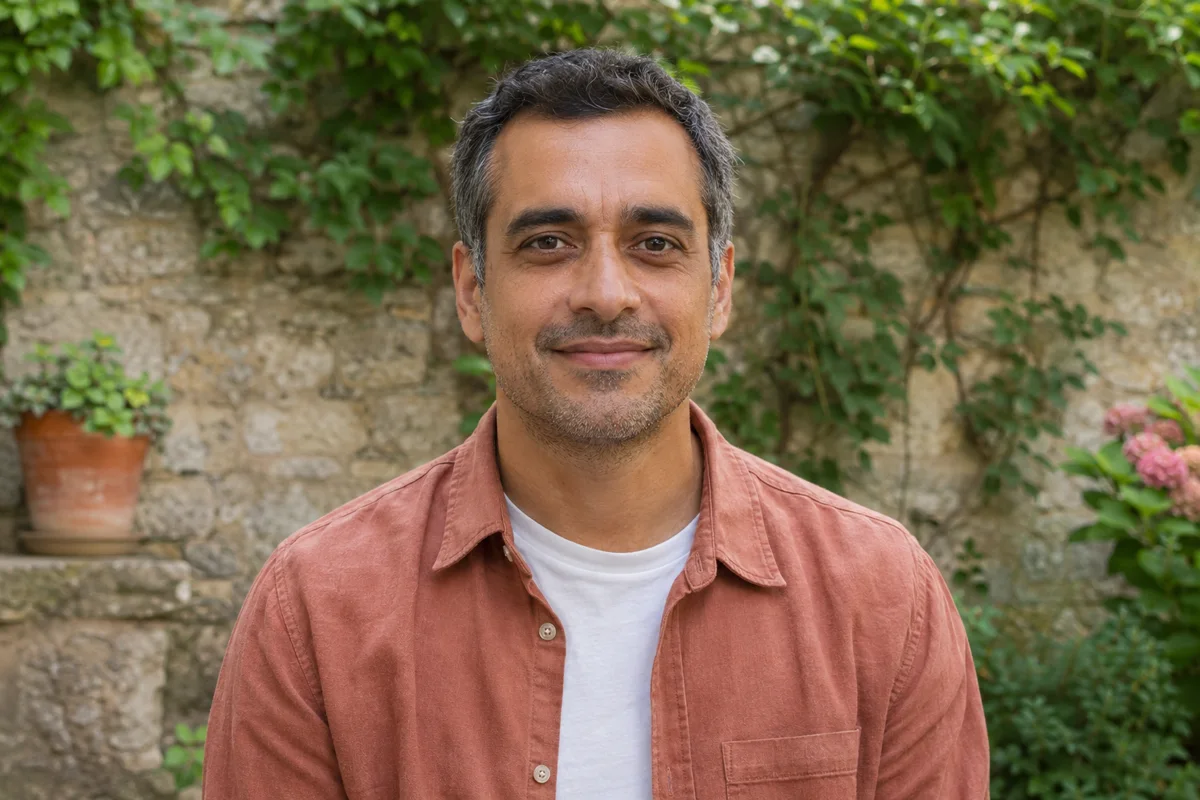
Give the portrait one clear thing to say
Type what the person in the photo should say. A short greeting works well for a first try: name the occasion, add the recipient’s name if it helps, and keep it to a couple of sentences.
Open the composer
Play the result before sharing
A preview of the image helps you judge the source photo. Review the completed video for speech, facial movement, and whether the original scene still reads clearly.
Open the composer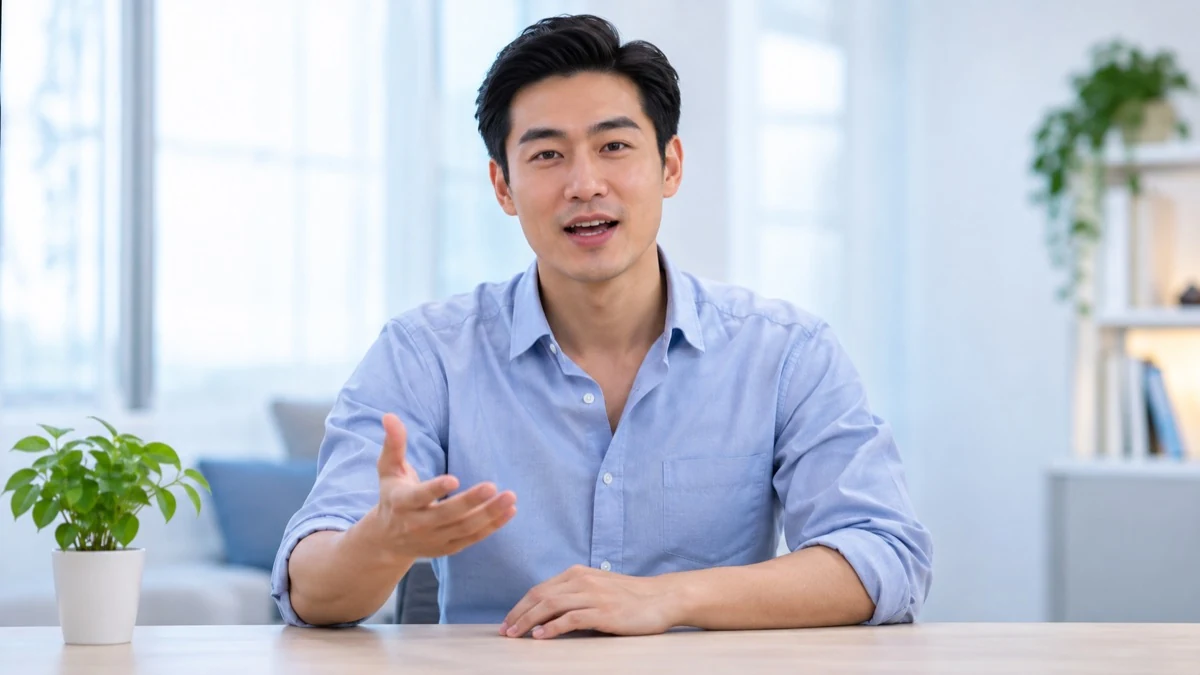
One photo, one spoken idea
A portrait-based route for messages that need a particular face.
Your portrait
Supply a single clear photo rather than choosing a stock character.
Written dialogue
Type a greeting, introduction, or short message for the pictured person.
Source-image setting
Choose the scene in the photo before uploading; there is no background control here.
Video review
Play a completed result before you download or share it.
How to make a photo talk
Prepare the image first, then give it a concise message.
From portrait to talking photo
- 01
Upload the portrait
Use a JPEG, PNG, or WebP image up to 10 MB that you have permission to animate. Check that the face is clearly visible.
- 02
Write the words for the photo
Type a short message into Script and choose the available video settings. The sample text fills Script only, so upload your own portrait to go with it.
- 03
Watch the full video
Sign in, check the displayed credit estimate, and submit. Once the result is ready, play it through before you download it.
Choose a message for your portrait
The photo supplies the face and the scene. Write a script that fits that person and occasion, then check the finished clip.
- Personal greetings
Give a portrait a short birthday, welcome, or thank-you message. Keep the greeting focused on the recipient and the occasion.
- Portrait introductions
Introduce a person with a name and one useful detail. Use a clear head-and-shoulders photo and check the spoken name in the finished clip.
- Character messages
Bring a character portrait into a short speaking scene. Use an image you are entitled to animate and review whether the generated face movement fits its style.
Frequently asked questions
How do I make a photo talk?
Use this AI talking photo generator: upload a clear portrait, type the words you want the person to say, and choose the available settings. Sign in to submit, then review the completed video.
Which photo files can I upload?
Use one JPEG, PNG, or WebP image up to 10 MB. Choose a sharp, front-facing portrait with the mouth unobstructed.
Can I replace the background?
No. The uploaded photo supplies both the person and the scene, and there is no background control. Choose the photo with the background you want before uploading.
Can I clone a voice from an audio recording?
This page takes a written script for generated speech. It has no voice-cloning control.
Can I animate someone else’s portrait?
Use a photo you own or have permission to animate. Ask for permission before making a message appear to come from another person.
Does trying the sample text upload a photo?
The sample fills the Script field only. Upload your own source portrait when you are ready to generate.